
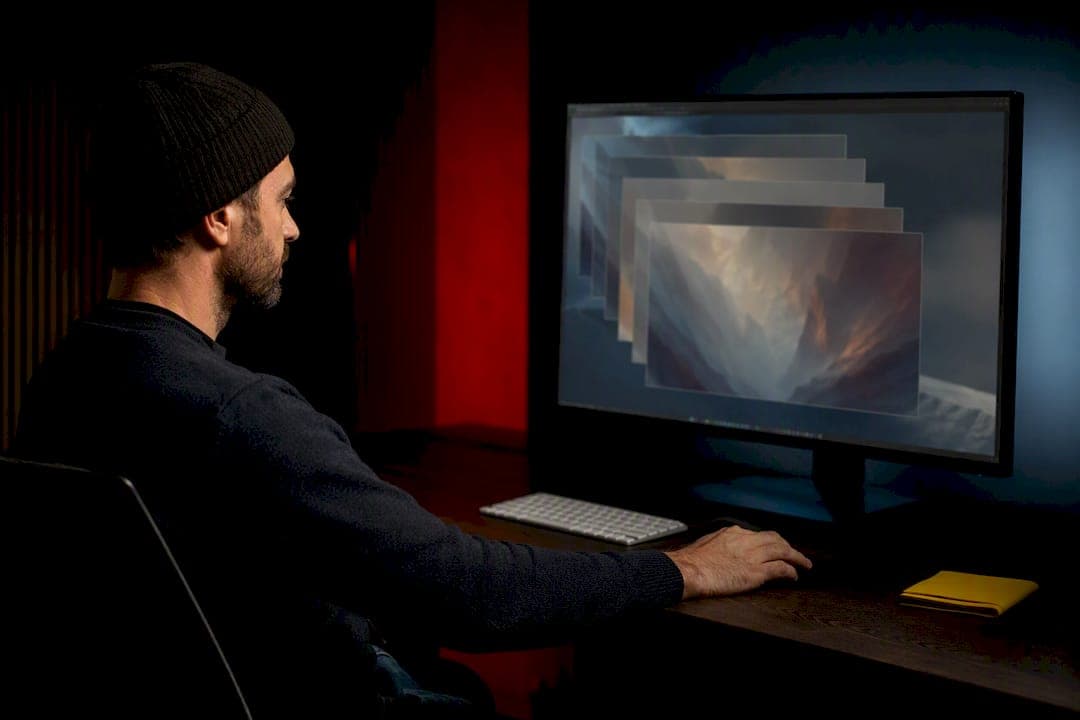
A non-destructive editing workflow records your edits as separate, reversible instructions instead of overwriting the original pixel data, which means you can revisit or undo any adjustment without losing quality. The core habit that makes this work is simple: keep a layered master file, and build every change on adjustment layers, layer masks, or Smart Objects rather than baking it directly into the pixels.
TL;DR:
- Using adjustment layers and layer masks keeps edits flexible and prevents pixel data from being permanently altered.
- Saving layered files in PSD or TIFF formats and backing up catalogs and sidecars ensures full edit history preservation.
- Each editing app handles non-destructive workflows differently, with Lightroom relying on metadata and Photoshop on layer stacks.
- Flattening files or re-saving JPEGs over original files indicates destructive habits that can compromise future edits.
- Outsourcing layered master management to a specialized studio reduces turnaround times and protects your archive integrity.
Table of Contents
- What Techniques Make an Editing Workflow Non-Destructive?
- How Should You Save and Back Up Non-Destructive Files?
- How Do Lightroom, Photoshop, and Capture One Handle Non-Destructive Edits?
- How Do You Set Up a Non-Destructive Workflow Step by Step?
- What Are the Warning Signs of a Destructive Habit?
- How 35milimetre Structures Its Own Non-Destructive Files
- Why Preserving Masters Changes the Client Relationship
- Need a Studio to Manage Your File Workflow?
- Sources
What Techniques Make an Editing Workflow Non-Destructive?
The gap between destructive and non-destructive editing comes down to where the instructions live. Destructive edits change the pixels themselves, permanently, the moment you apply them and save. Non-destructive edits sit on top of the image as adjustable layers you can tweak, hide, or delete at any point in the process.
Start with adjustment layers. Curves, Levels, and Hue/Saturation applied through the Adjustments panel stay editable indefinitely, while the same moves made through Image > Adjustments get baked into the pixels right away. Pair every adjustment layer with a layer mask instead of reaching for the Eraser tool. A mask hides pixels without deleting them, so you can repaint, feather, or invert the selection later.
Smart Objects solve a different problem. Converting a layer to a Smart Object before applying a filter or transform locks the original data inside a container, and Photoshop's own guidance on nondestructive editing treats this as one of the foundational moves in the app. Once a layer is smart, any filter you apply becomes a Smart Filter, complete with its own mask, so you can dial back sharpening or blur without starting over.
Retouching needs the same discipline. Clone and heal on a new, empty layer with "Sample All Layers" turned on, rather than working directly on the background. Digital Photography School's walk-through recommends this exact approach for portrait and landscape retouching alike. Dodge and burn belongs on a dedicated neutral gray layer set to Overlay or Soft Light, a technique that lets you erase or soften individual strokes long after the session ends, according to a detailed breakdown of non-destructive dodge and burn.
Global RAW adjustments belong in Camera Raw or the Develop module, before you ever touch pixel-level tools. That keeps your white balance, exposure, and lens corrections parametric from the first click.
- Adjustment layers for tonal and color work, never Image > Adjustments
- Layer masks instead of the Eraser
- Smart Objects before any transform or filter
- Retouching on separate layers with Sample All Layers active
- Dodge and burn on a neutral gray overlay layer
- Camera Raw for global exposure and color moves
Pro Tip: Group your adjustment layers by function, like "Color," "Dodge & Burn," and "Retouch," so a client revision six months from now takes minutes instead of an afternoon of digging.
How Should You Save and Back Up Non-Destructive Files?
Your file strategy either protects a non-destructive workflow or quietly undermines it. PSD and TIFF masters preserve the full layer stack, meaning every mask, Smart Object, and adjustment layer stays intact and editable the next time you open the file. A flattened JPEG, by contrast, is a dead end. It's a final deliverable, not a working file, and Icon Photography School's guide to preserving originals makes this distinction the backbone of any real archive strategy.
RAW workflows add another layer: XMP sidecar files or a Lightroom catalog store your parametric edits separately from the RAW data itself. Lose the sidecar or the catalog, and you lose the entire edit history, even though the original RAW file sits untouched on your drive. That's a detail photographers underestimate more often than any other.
A dependable setup looks like this:
- Store RAW originals in a dedicated, read-only masters folder, never touched after import.
- Save layered PSD or TIFF masters for any file that goes through Photoshop.
- Back up catalogs and XMP sidecars on the same schedule as your image files, not as an afterthought.
- Run a local backup and a separate offsite or cloud backup, so a single drive failure can't erase both.
- Export deliverables (JPEG or TIFF) as copies, and set a hard rule: masters never get overwritten.
Studios that skip scheduled catalog backups tend to discover the cost only after a drive fails mid-project, when six months of edit history disappears along with it.
How Do Lightroom, Photoshop, and Capture One Handle Non-Destructive Edits?
Each major editing app takes a slightly different route to the same goal, and knowing the difference keeps you from assuming a feature works the way it does in another program.
- Lightroom stores every adjustment as parametric metadata inside its catalog. Nothing touches the RAW file itself, and snapshots plus sync let you apply one image's edits across an entire shoot in seconds.
- Photoshop runs on layer-stack discipline. Adjustment layers, Smart Objects, and Smart Filters keep things reversible, but the app will happily let you flatten a file or paint directly on a pixel layer if you're not paying attention.
- Capture One offers both session and catalog modes, and its adjustment-copying tools make batch edits fast, though the underlying philosophy mirrors Lightroom's parametric approach.
- Affinity Photo and similar tools now include live filters and adjustment layers, but they demand the same user discipline Photoshop does. The software won't stop you from working destructively.
The gotchas repeat across every platform: opening and re-saving a JPEG as your working file, flattening a PSD before you're actually finished, saving directly over a RAW-derived master, or running a plugin filter that bakes itself into the pixels with no mask option. None of these tools are destructive by design. They become destructive through habit.
How Do You Set Up a Non-Destructive Workflow Step by Step?
Converting your current process into a reliably reversible one takes a handful of deliberate steps, not a full overhaul of how you shoot or edit.
- Ingest your RAW files and place the originals in a masters folder you treat as read-only.
- Import into Lightroom, or build a layered PSD/TIFF master for any image headed into Photoshop.
- Duplicate the background layer or convert it to a Smart Object before you touch a filter or transform.
- Build your adjustments as separate layers, each with its own mask, rather than working straight on the image.
- Add a dedicated retouch layer (Sample All Layers on) and a neutral gray dodge and burn layer.
- Name every layer by function, group related layers, and save incrementally as you go.
- Back up your catalog and XMP sidecars on a fixed schedule, alongside your image files.
- Export finished deliverables as copies, and archive the layered masters untouched.
Pro Tip: Set a recurring calendar reminder for catalog backups. The habit that protects a non-destructive workflow is rarely the editing technique. It's the backup you forgot to automate.
What Are the Warning Signs of a Destructive Habit?
A few behaviors reliably signal you've drifted into destructive territory, and catching them early saves the file.
- Flattening a PSD "just to clean it up" before the project is actually done
- Opening a JPEG, editing it, and saving over the same file
- Reaching for the Eraser instead of a layer mask
If you catch a near-destructive save in progress, stop and reopen the original RAW or the last backed-up catalog version rather than continuing on a compromised file. A common misconception worth remembering: a tool labeled "smart" or "live" doesn't guarantee permanence once you export to a flattened format.
How 35milimetre Structures Its Own Non-Destructive Files
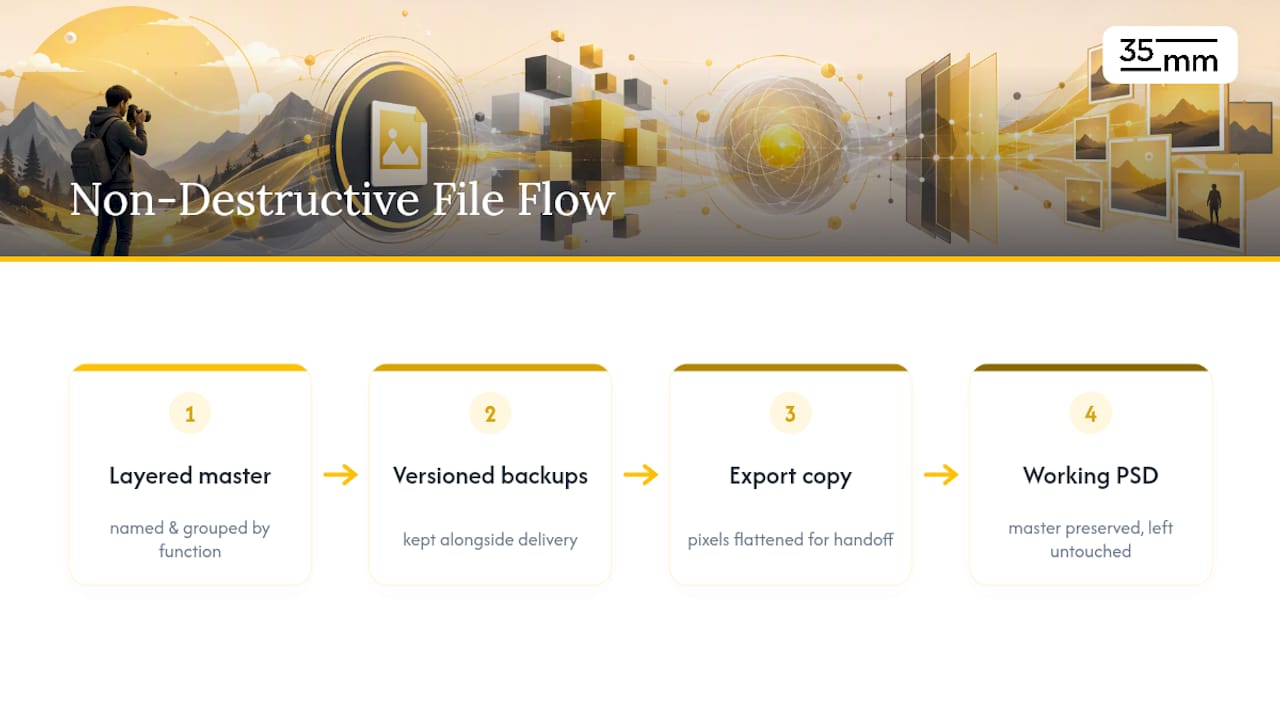
Every commercial retouching project starts and ends as a layered master, named and grouped by function so a revision request doesn't mean rebuilding work from scratch. Versioned backups run alongside client delivery, not after it. The studio does flatten pixels before final handoff, but only on the export copy, preserving the master file intact. The working PSD stays untouched, which is what makes fast client revisions possible without renegotiating the whole edit.
Why Preserving Masters Changes the Client Relationship
Keeping masters editable isn't a technical preference. It changes what a revision costs a client, in time and in money. An edit built once, on reusable layers, can be adapted across an entire campaign instead of rebuilt for each asset.
— 35mm
Need a Studio to Manage Your File Workflow?
If your team is stretched between shooting, editing, and managing a growing archive of masters, sidecars, and revision requests, outsourcing that discipline to a studio built around it solves a real bottleneck. Commercial retouching, layered master file management, and delivery pipelines can be run as a core part of daily work, not an occasional favor.
Building this discipline in-house takes time most small teams don't have to spare, especially once a campaign spans dozens of product shots or multiple revision rounds. Hiring a studio makes sense the moment revision turnaround starts costing you more than the project's margin allows. 35milimetre's commercial retouching and post-production services are built around exactly that problem: layered masters stay editable, deliverables export clean, and revisions don't mean starting over. If your current archive of masters and sidecars feels more like a liability than an asset, reach out and request a workflow consultation to see where the gaps actually are.