
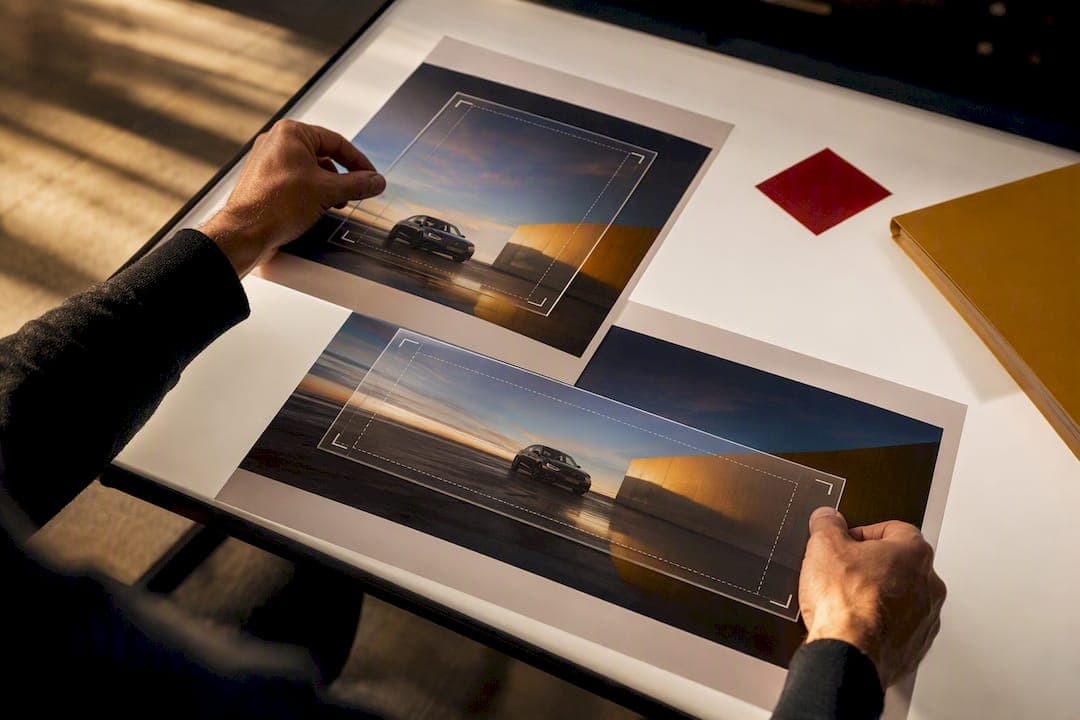
Supply high-quality JPG or PNG masters with WebP fallbacks for photos, SVG for logos and icons, and GIF or animated WebP for motion. These aren't suggestions. They're the difference between a creative that clears trafficking on the first pass and one that bounces back to your desk twice.
TL;DR:
- JPEG remains the standard for photographic content, while PNG is best suited for flat graphics and icons needing transparency.
- WebP and AVIF generally offer better compression but require fallback files like JPEG or PNG due to inconsistent browser support.
- Ad platforms enforce strict size, aspect ratio, and framing rules, with Google Ads requiring centered content within an 80% safe area and specific dimensions.
- Final creative assets should include layered masters, multiple optimized exports, a detailed manifest, and aspect ratio guidance to ensure smooth review and deployment.
- Implementing lazy loading, responsive markup, and aggressive CDN caching significantly reduces load times and maintains visual consistency across browsers and devices.
Table of Contents
- Which Image File Types Work Best for Digital Ads
- Google Ads, Meta, and Programmatic: What Each Platform Actually Requires
- Ad Sizes, Aspect Ratios, and the Safe Area Rule That Saves Rework
- Setting File-Size Caps, Compression, and Color Profiles Correctly
- Animated Creative, HTML5, and How You Actually Deliver the File
- Campaign-Ready Image Delivery Checklist
- Faster Load Times Take More Than Smaller File Sizes
- Why the Same Ad Looks Different Across Browsers and Devices
- The Post-Production View: Where Ad Creative Usually Breaks Down
- Sources
Which Image File Types Work Best for Digital Ads
The format decision comes down to what's in the image and where it's going. Photography behaves differently than a flat logo, and a platform's compression engine treats each format differently once your file leaves your hands.
- JPG: Still the workhorse for photographic content. Lossy compression handles gradients and shadow detail well, and every ad platform on earth accepts it without a second thought.
- PNG: Reach for it with flat graphics, small icons, or anything needing alpha transparency. PNG-8 trims file size nicely when your palette is limited, like a logo with two or three colors.
- WebP / AVIF: Both beat JPG and PNG on file-size-to-quality ratio, sometimes by a wide margin, but you should always keep a JPG or PNG fallback in the delivery bundle since browser and platform support still varies.
- GIF vs. animated WebP: GIF still works where simple animation is expected, but animated WebP (or a short MP4 where the platform allows it) usually delivers sharper motion at a smaller footprint.
- SVG: Vector logos and icons only. Never route a photograph through SVG; the file will balloon and the result will look nothing like a photo.
- Layered masters (PSD/TIFF): Hand these off whenever a downstream team, an ad ops group, or a second agency might need to re-crop or re-edit the piece later. It saves everyone a re-shoot.
Google Ads, Meta, and Programmatic: What Each Platform Actually Requires
Every platform enforces its own file-type list, size ceiling, and framing rule, and the fastest way to get a creative rejected is to assume they're interchangeable.
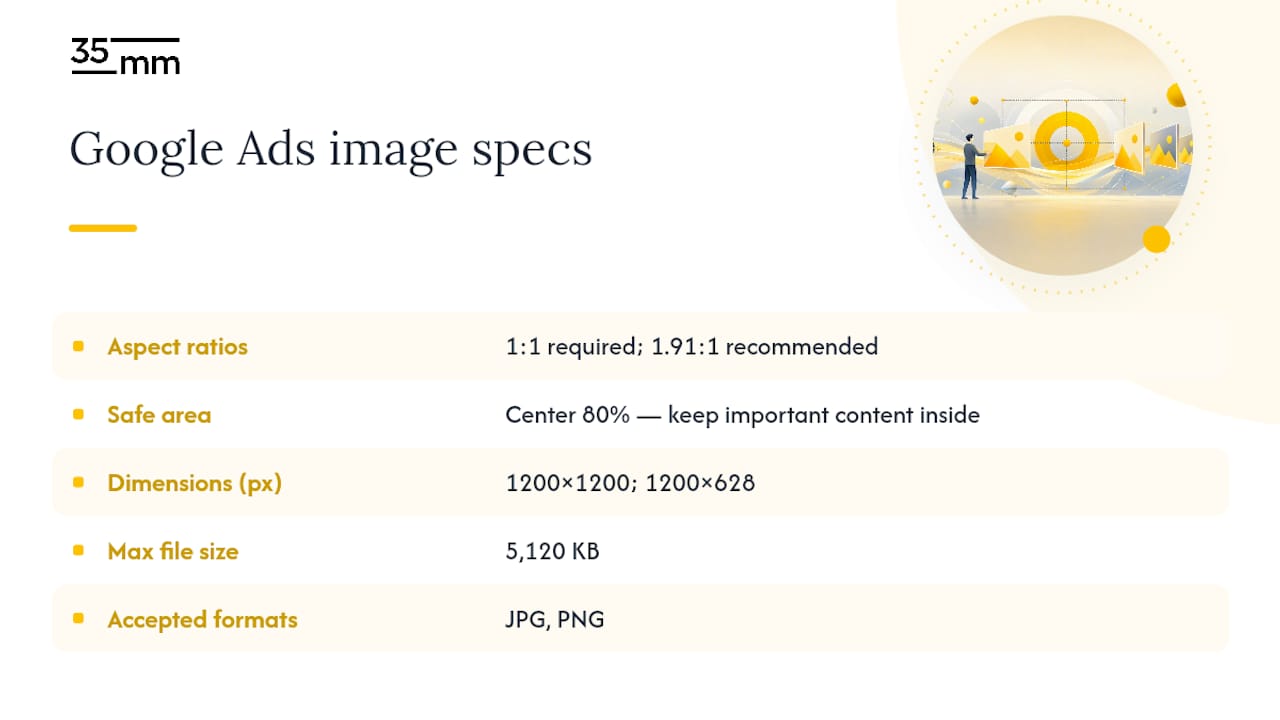
Google Ads requires a square 1:1 ratio and recommends adding landscape 1.91:1 as well, with suggested pixel dimensions of 1200×1200 and 1200×628 and a maximum file size of 5,120 KB for responsive image uploads. JPG and PNG remain the primary accepted types. Google's policy team also enforces a strict framing rule: important content has to sit inside the center 80% of the image, and creative that leans on excessive filtering, awkward collages, or sloppy cropping gets flagged for disapproval.
Meta Ads Manager supports JPG and PNG as its core raster types, with flexible upload counts across a wider range of aspect ratios than Google's fixed square/landscape pairing. Meta's quality review also watches for hard borders, heavy overlay text, and stacked filters, the same category of issue Google flags, just enforced through a separate review pipeline.
Programmatic and AdCP-style manifests typically accept JPG, PNG, WebP, GIF, and SVG, and define per-slot maximum file sizes alongside fixed-pixel dimensions like 300×250, 728×90, and 970×250. Responsive programmatic slots instead specify a minimum width, minimum height, or acceptable aspect-ratio range. HTML5 creatives and third-party tags need their own manifest metadata describing every asset the tag will call.
The policy pitfalls repeat across all three environments: disallowed collages, over-filtered images, too much text laid over the photo, or a logo placed where a platform's crop rules will clip it.
Ad Sizes, Aspect Ratios, and the Safe Area Rule That Saves Rework
Programmatic buys still run on a handful of fixed pixel sizes that have barely changed in a decade, because publisher ad slots were built around them:
- 300×250 (medium rectangle), the most widely bought programmatic size
- 728×90 (leaderboard), common above the fold on desktop
- 160×600 (wide skyscraper), a sidebar staple
- 970×250 (billboard), used for high-impact desktop placements
- 320×50 and 320×480, the mobile equivalents most publishers expect
Social and full-screen placements run on ratios instead of fixed pixels: 1.91:1 for landscape feed posts, 1:1 for square, 9:16 for vertical and full-screen stories, and 4:5 for vertical feed placements on mobile. Deliver at least the platform's recommended resolution, 1200×628 for landscape or 1200×1200 for square are common baselines, so the image stays sharp after a publisher scales it up or down.
Test every crop against how social platforms overlay their own UI elements on top, bottom, and sides before you sign off on a final asset.
Setting File-Size Caps, Compression, and Color Profiles Correctly
Plan around a few practical ceilings before you export anything. Standard banner sizes usually need to land around 150 to 200 KB, large formats like 970×250 climb closer to 300 KB, and some responsive uploads on Google Ads allow files up to 5,120 KB. Animated GIFs run heavier still, but every platform caps them somewhere.
Keep a lossless master on file at all times, then export from it rather than re-compressing an already-compressed JPG. A few habits that consistently pay off:
- Export progressive JPGs where the platform supports them; they render faster on slow connections.
- Test WebP and AVIF against your JPG export and compare visual artifacts at 100% zoom before committing.
- Export in sRGB, not CMYK, for every digital ad. CMYK is a print-only color space, and dropping a CMYK file into an ad server produces washed-out, incorrect color on screen.
- Use PNG or SVG when transparency is required, but budget for the file-size increase transparency brings.
Pro Tip: Keep one PSD master with a labeled safe-area guide layer for every campaign. When a platform rejects a crop six months later, you'll thank yourself for not having to rebuild the file from scratch.
Animated Creative, HTML5, and How You Actually Deliver the File
Simple animation still runs fine as GIF, but animated WebP or a short MP4 usually beats it on both file size and image quality where the platform accepts it.
HTML5 creatives need a full asset bundle, background image, logo, headline, CTA, packaged to run inside a sandboxed environment like SafeFrame, with a defined initial load budget and a list of allowed external domains. Ad servers increasingly expect a typed assets manifest, an AdCP-style JSON file that spells out every asset's format, dimensions, and size limit before trafficking even begins. That same manifest is the natural place to attach your impression tracker and clickthrough URL as typed pixel assets, rather than emailing them separately and hoping ad ops matches them up correctly.
Campaign-Ready Image Delivery Checklist
Attach this to every handoff so ad ops can ingest the bundle without a round of clarifying emails.
- Layered masters (PSD or TIFF) for any asset that may need re-cropping later.
- Flattened exports in JPG, PNG, and WebP at each platform's recommended pixel size.
- SVG logo file, separate from any flattened photographic asset.
- Animated files only if the placement calls for motion.
- A manifest listing filename, dimensions, format, and max file size per asset.
- Clickthrough URL and tracking pixel snippet, typed and labeled.
- Aspect-ratio notes covering every crop the campaign requires.
| Check | What to confirm |
|---|---|
| Safe area | Key content sits inside center 80% |
| Borders | No hard borders or frame artifacts |
| Overlay text | Minimal, doesn't crowd the frame |
| Color space | sRGB confirmed, not CMYK |
A prepared image bundle built around this checklist tends to clear review on the first submission more often than one assembled piecemeal.
Faster Load Times Take More Than Smaller File Sizes
Shrinking a file is only half the job. Serving it fast depends on how and when the browser actually requests it.
Lazy loading defers offscreen images until the user scrolls near them, which matters enormously for ad-heavy pages where a dozen creatives might load below the fold and never get seen. Native lazy loading, supported through a simple HTML attribute, keeps initial page weight down without any extra scripting.
Responsive image markup matters just as much as lazy loading. Serving a single 1200×1200 master to every device means a phone on a mobile connection downloads the same bytes as a 27 inch monitor. Providing multiple resolutions and letting the browser pick the right one, the same logic behind responsive display ad best practices, cuts wasted bandwidth without touching visual quality.
A few more habits worth building into your export routine:
- Preload the hero creative on high-priority placements so it doesn't compete with lower-value assets for bandwidth.
- Strip unnecessary metadata (EXIF data, embedded color profiles beyond what's needed) before export; it adds bytes with zero visual benefit.
- Decode images asynchronously where the ad tag supports it, so a slow-loading creative doesn't block the rest of the page from rendering.
- Cache aggressively at the CDN level for static creative assets that don't change mid-flight.
None of this replaces good compression. It sits on top of it. A well-compressed WebP file still benefits from lazy loading and proper responsive markup, and the visual content optimization practices that work for organic site content apply just as directly to paid media.
Why the Same Ad Looks Different Across Browsers and Devices
An ad image that looks perfect in your design tool can render inconsistently once it leaves your machine. Browsers handle color management, image scaling, and format support differently enough that the same file can shift in appearance from one screen to the next.
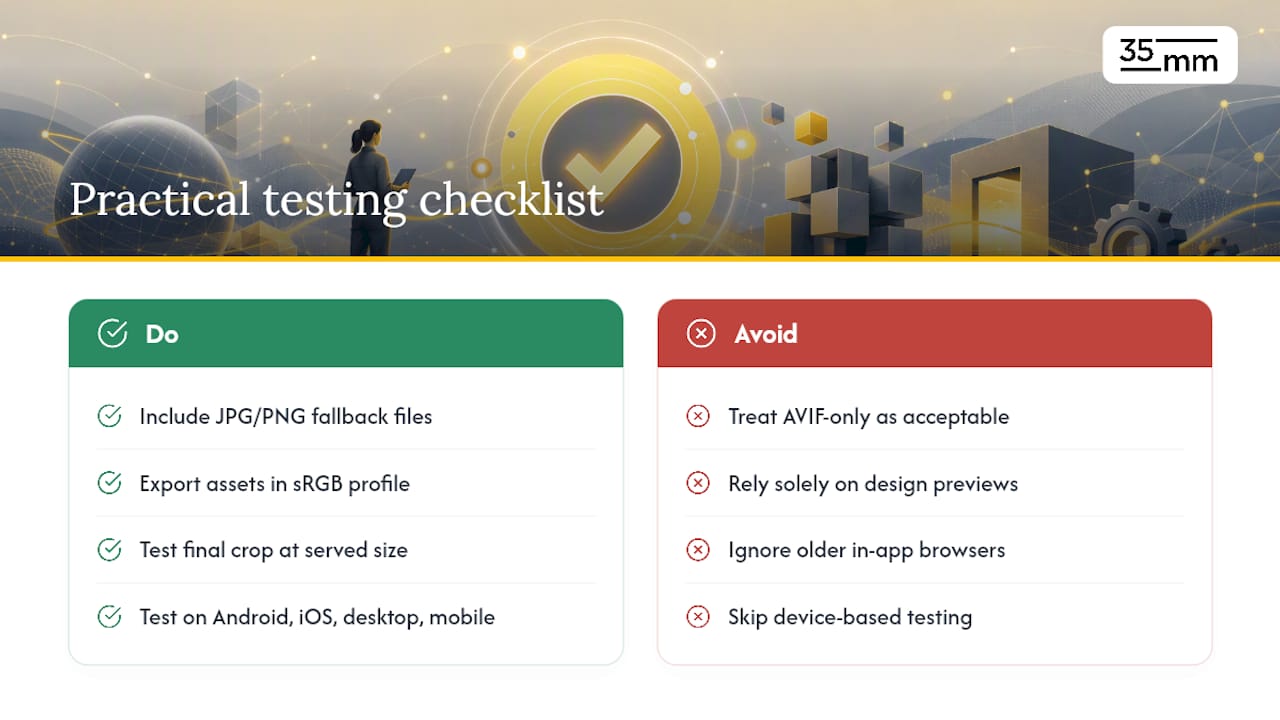
Format support is the first fault line. AVIF still isn't universally supported across every browser and app webview combination, which is exactly why a JPG or PNG fallback belongs in every delivery bundle rather than being treated as optional. Older in-app browsers on some mobile operating systems lag behind desktop Chrome or Safari on newer format support by a year or more.
Scaling introduces the second problem. A 1200×628 master downscaled aggressively for a small mobile banner can develop moiré patterns or soft edges depending on the browser's resampling algorithm. Testing your final crop at its actual served size, not just at full resolution in a design tool, catches this before it reaches a live campaign.
Color rendering varies too. A color profile that looks accurate on a calibrated monitor can shift slightly on an uncalibrated phone screen or a device running an older display driver. Exporting in sRGB minimizes this drift, but it doesn't eliminate it entirely, especially on older Android devices with inconsistent color management.
The practical fix is redundancy: test your final assets on at least one older Android device, one iOS device, and both a desktop and mobile version of the two most common browsers your campaign will run through. It takes fifteen minutes and catches problems no design software preview will show you.
The Post-Production View: Where Ad Creative Usually Breaks Down
The most common failure in ad imagery isn't a wrong file format. It's a composition that reads fine full-size but falls apart the moment a platform crops it. We see it constantly: a headline sitting three pixels from the edge, a product shadow that gets sliced off, a logo that assumed a crop the platform never applies.
Heavily synthetic composites carry their own risk. Real shadows and physical context tend to hold up better under platform review than an obviously assembled scene, even when the composite is technically flawless. Deliver multiple crops from a safe-area-marked master, and attach a short handoff note specifying color space, intended ratios, and any limits on retouching. That one note eliminates most of the back-and-forth we see between creative teams and ad ops.
— 35mm
If your team is packaging creative for a launch and wants a second set of eyes on the masters before they hit trafficking, 35milimetre's post-production and design team works directly with ad agencies, brands, and photographers to get image assets platform-ready, from retouching and compositing through to full campaign-ready delivery bundles.